 Smart Printer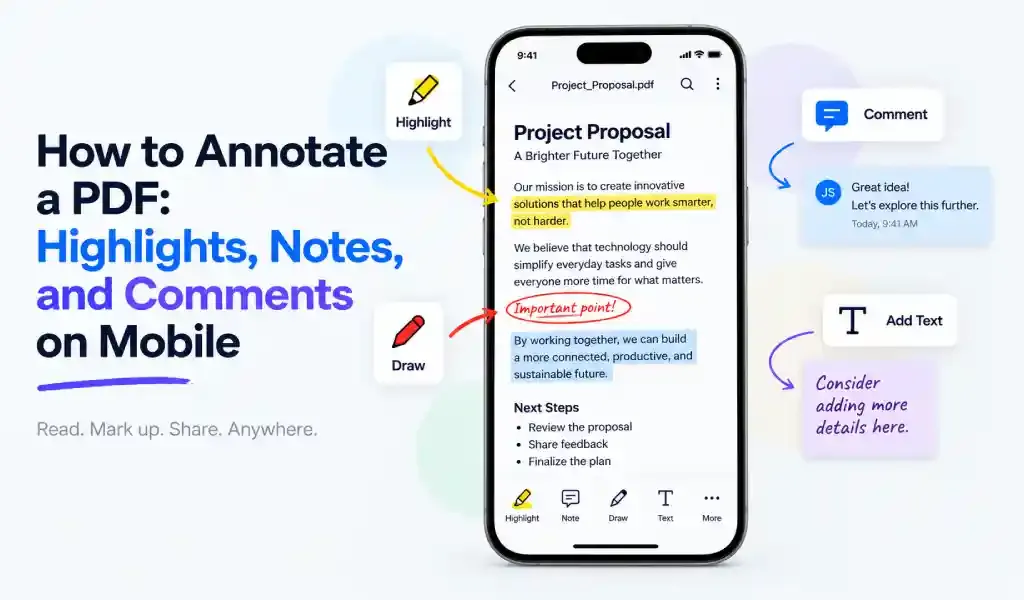
You can annotate a PDF directly from your phone: highlight key passages, drop in sticky notes, leave comments, or draw on the page, all using a PDF app with built-in markup tools. No printing it out, no scanning it back in, no switching to a laptop to get it done.
Most people already do this on paper without thinking twice: grab a highlighter, scribble a note in the margin, circle something important. Mobile annotation does the same job, minus the risk of ruining the original, and your notes end up searchable, shareable, and impossible to lose in a stack of printouts.
What Actually Counts as a PDF Annotation?
The word "annotation" gets used loosely, but a few distinct tools fall under it, and knowing the difference makes you faster with any of them.
Highlights lay a transparent color over text, the same as a physical highlighter. Good for flagging something quickly without adding an explanation.
Notes, sometimes called sticky notes, attach a small icon to a specific spot on the page. Tap it, and a text box opens where you write whatever you need — a question, a reminder, a correction. The page itself stays clean; the note sits behind the icon until someone opens it.
Comments work similarly to notes but tend to get used for longer or threaded feedback, the kind you'd expect when more than one person is reviewing the same document.
Beyond those three, most annotation tools also include underline, strikethrough, freehand drawing, and text boxes for typed callouts directly on the page. None of these are complicated on their own, but knowing which one fits the moment is what separates a marked-up mess from a document that's actually easier to review afterward.
How to Highlight Text in a PDF on Your Phone
- Open the PDF in an app with annotation tools, such as Smart Printer: Print Scan Fax.
- Select the text by tapping and dragging, the same way you'd select text anywhere else on your phone.
- Choose the highlight tool and pick a color.
- Tap to apply. The highlight saves directly into the PDF, visible to anyone who opens the file afterward.
How to Add a Note or Comment to a PDF
- Open the note or comment tool from the annotation menu.
- Tap the spot on the page where the note should attach.
- Type your note. Keep it short enough to read at a glance, longer only if the context truly needs it.
- Save it. The note appears as a small icon that others can tap to read.
Drawing and text boxes work the same basic way: pick the tool, tap or drag on the page, and it saves as part of the document.
Tips for Annotating Like You Know What You're Doing
A few habits make mobile annotation genuinely useful instead of just messy.
- Color-code on purpose. Yellow for important, red for a problem, green for already resolved. Pick a system and stick to it, so a glance at the page tells you something before you've read a single note.
- Use highlights to flag, notes to explain. If you just need to find something again later, highlight it. If you need to say why it matters, add a note.
- Keep notes short. A note that takes longer to read than the passage it's attached to has missed the point. Say the one thing that matters and stop.
- Don't annotate everything. A page covered in color loses all meaning. Save highlights for what actually stands out.
- Check for a review or list view. Most annotation apps let you jump straight to every highlight and note you've made in a document, without scrolling back through page by page. It's the difference between annotating for five minutes and actually getting value out of it a week later.
Common Uses for Mobile PDF Annotation
Students mark up assigned readings and lecture slides the same way they'd mark up a printed textbook, except the file stays reusable and the notes are easy to find again later. Professionals reviewing a contract highlight clauses that need a second look and leave a comment explaining the concern right where it applies, instead of in a separate email that gets disconnected from the actual text. Editors and teams use comments to give feedback without changing the original document, which keeps a clean record of who suggested what and why. And anyone reading a long PDF away from their desk, a report, a research paper, a signed agreement, can mark it up on the spot instead of waiting until they're back at a computer.
Quick Answers
Can I highlight a PDF on my phone without a computer? Yes. Any PDF app with built-in annotation tools lets you highlight, underline, and comment directly from a phone, with no computer required.
What's the difference between a note and a comment in a PDF? Notes are typically short additions attached to a single point on the page. Comments are often used for longer feedback, particularly in documents being reviewed by more than one person.
Do PDF annotations save permanently in the file? Yes. When added through a proper annotation tool, highlights, notes, and comments are saved as part of the PDF itself, so they appear for anyone who opens the file afterward.
Can I edit or remove an annotation after adding it? Most annotation tools let you tap an existing highlight or note to change its color or text, move it, or delete it entirely.
Highlight, comment, and mark up any PDF from your phone with Smart Printer: Print Scan Fax. Free on Google Play.