 Smart Printer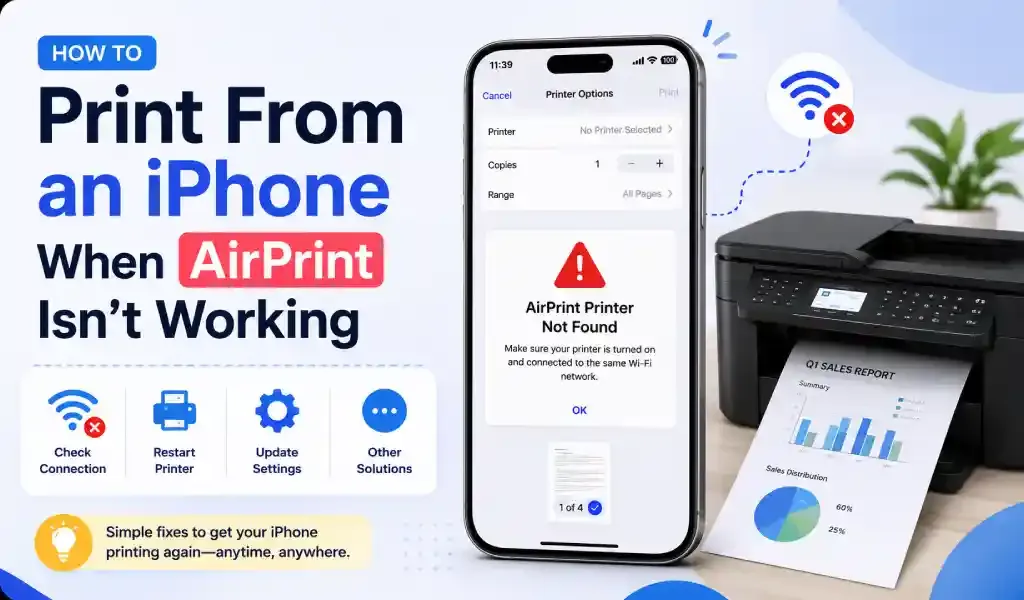
AirPrint usually breaks for one of three reasons: your iPhone and printer aren't actually on the same network, something on your network is blocking device discovery, or the printer was never AirPrint certified in the first place. Two of those you can fix in a few minutes. The third one, no amount of restarting will solve. You'll need a different way to print.
Here's how to work through it properly, instead of restarting things at random and hoping.
Why AirPrint Stops Working in the First Place
AirPrint isn't magic. It's Apple's implementation of a wireless printing standard built on a protocol called Bonjour (Apple's version of mDNS, or multicast DNS) that lets your iPhone "see" printers on the local network. Three things have to line up at once: the printer has to be AirPrint certified, the iPhone and printer have to be on the exact same WiFi network, and that network has to allow local devices to discover each other.
Break any one of those and printing just quietly fails, usually with a vague "no printers found" message that gives no clue which one is actually the problem.
Make Sure You're Actually on the Same Network
This is the single most common cause, by a wide margin. A lot of routers broadcast two separate networks — one for 2.4GHz and one for 5GHz — often with nearly identical names like "Home-WiFi" and "Home-WiFi-5G." If your iPhone connects to one and your printer is sitting on the other, AirPrint has no way to find it, even though everything looks perfectly normal on the surface.
Open Settings > Wi-Fi on your iPhone and check the exact network name, then check your printer's display or settings menu for the network it's connected to. If the two don't match, switch your iPhone onto the printer's network and try again.
This also trips people up on guest networks — if your phone auto-connected to one at a hotel, an office, or even your own house, it's isolated from the printer by design.
Turn Off Your VPN
If you use a VPN on your iPhone, turn it off before you print. A VPN routes your traffic through a remote server, so your phone stops talking to local devices the normal way — and Bonjour discovery depends entirely on local network traffic. This gets missed constantly because nobody thinks of a VPN as a "printing" setting.
Restart the Printer and the Phone
It sounds too simple to help, but a full power cycle clears out a surprising number of AirPrint problems. Turn the printer off at the power switch, not just WiFi, wait ten seconds, then turn it back on. Restart your iPhone too — this clears stuck DNS caches and print jobs jammed in the queue, a more common culprit than people assume.
Update the Printer's Firmware
Printer manufacturers push firmware updates that fix exactly this kind of connectivity bug fairly often. Most printers let you check for updates from their control panel or the manufacturer's companion app. If you haven't updated in a while, do this before working through anything else here.
Remove and Re-Add the Printer
Sometimes iOS just holds onto a stale connection. Open the Print dialog from any app — tap the share icon, then Print — tap Printer, and if it shows up but won't connect, select "No Printer Selected" and let it search again. You can also forget the printer entirely and let AirPrint rediscover it from scratch.
Check Whether Your Router Is Blocking Discovery
This one's less obvious. Many routers, especially mesh systems and office networks, have a setting called AP isolation or client isolation, which deliberately stops devices on the same WiFi network from seeing each other for security reasons. It's standard on public WiFi and increasingly common as a default on home mesh routers too. If your printer and phone are genuinely on the same network and everything else checks out, look for this setting in your router's admin panel.
Was Your Printer Ever AirPrint Certified?
Here's the thing nobody tells you upfront: not every printer supports AirPrint, and no amount of troubleshooting changes that. Apple certifies specific models, and plenty of budget printers, older models, and printers built mainly for Windows PCs never went through certification at all. If yours falls into that category, restarting it a hundred times won't help — there's nothing broken to fix.
Check your printer manufacturer's support page for an AirPrint compatibility list to settle this one way or the other before you spend more time on it.
When Nothing Works: Print Without AirPrint
If your printer was never AirPrint certified, or you've worked through everything above and it's still not connecting, the real fix is to stop depending on AirPrint entirely. A dedicated printing app like Smart Printer: Print Scan Fax connects to printers directly over your WiFi network using the printer's own network protocol, rather than Apple's Bonjour-based discovery — so it can talk to printers AirPrint simply refuses to recognize, including most HP, Canon, Brother, and Epson models, certified or not.
Install the app, connect your iPhone to the printer's WiFi network, and it scans for available printers the same way AirPrint would try to, minus the certification requirement standing in the way.
FAQ
Why does my printer show up in Settings but not in the Print dialog? That usually means the connection is stale. Forget the printer under Settings and let it reconnect, or restart the printer and try again.
Does AirPrint work over Bluetooth? No. AirPrint is WiFi-based only. If your printer only supports Bluetooth printing, AirPrint won't detect it at all.
Can I use AirPrint on public or hotel WiFi? Rarely. Most public networks isolate devices from each other for security, which blocks the local discovery AirPrint depends on.
My printer isn't on the AirPrint compatibility list — can I still print from my iPhone? Yes. A printing app that connects directly to the printer over your network, instead of relying on AirPrint, works with far more printer models than AirPrint supports natively.
Print to almost any WiFi printer from your iPhone, certified or not, with Smart Printer: Print Scan Fax — free on the App Store and Google Play.