 Smart Printer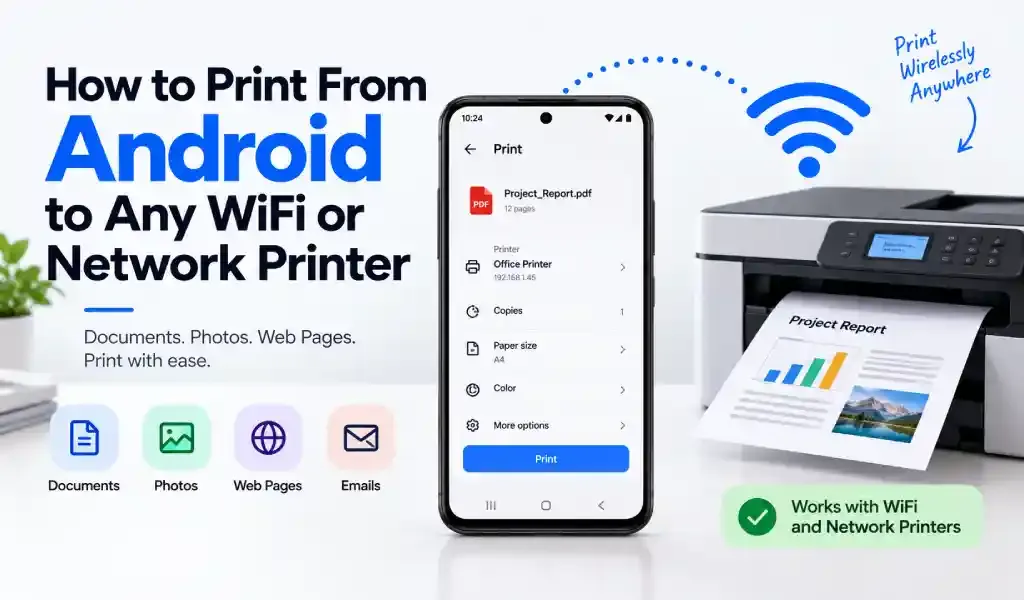
Android can print to a WiFi or network printer two ways: through its built-in print framework, if your printer supports a certification called Mopria, or through a dedicated printing app that works with virtually any printer regardless of certification. Either way, once your phone and printer share a WiFi network, printing takes under a minute.
Most people never realize Android has native printing built in at all, which is exactly why "how do I print from my Android phone" keeps coming up. It's there. It's just buried in a settings menu nobody opens by accident.
Check If Your Printer Works With Android's Built-In Printing
Android has included a real print framework since Android 4.4 (KitKat), and most phones ship with the Mopria Print Service pre-installed or available as a free download. Mopria is an industry certification, backed by HP, Canon, Epson, Samsung, and others, that guarantees a printer works with any Android device without needing that brand's own app. If your printer was made in the last decade or so, there's a good chance it's Mopria-certified.
Here's how to check and turn it on:
- Open Settings, then search for or navigate to Printing (usually under Connected Devices or Connection Preferences, depending on your phone).
- Confirm Mopria Print Service is switched on. If it's missing, it's a free download from the Play Store.
- Make sure your phone and printer are on the same WiFi network.
- Open any app, tap the share icon or the three-dot menu, and look for Print.
If your printer shows up in that list, you're already set. No extra app required.
How to Print Using Android's Built-In Framework
- Open the document, photo, or webpage you want to print.
- Tap Share or the menu icon, then select Print.
- Tap the printer dropdown at the top and choose your printer.
- Adjust paper size, color, and number of copies.
- Tap the print icon to send the job.
This works well for a quick print from Chrome, Gmail, Google Drive, or Google Photos. Where it falls short is anything beyond a single file from a single app: batch printing, PDFs that need editing first, scanned pages, or a printer that simply isn't Mopria-certified.
When the Built-In Option Isn't Enough
Older printers, budget models, and some office multifunction machines were never Mopria-certified, which means they won't show up in Android's native print dialog no matter how correctly you've set things up. Even on certified printers, the built-in framework only prints what's already open in another app. It doesn't scan, fax, merge PDFs, or manage documents on its own.
That's the gap a dedicated printing app closes. Instead of relying on certification, an app like Smart Printer: Print Scan Fax connects to the printer directly over the network and works with WiFi and network printers broadly, including HP, Canon, Brother, Epson, Samsung, Lexmark, Xerox, and thousands of other models, certified or not.
How to Print From Android With a Printing App
- Connect your phone and printer to the same WiFi network.
- Open the app and let it scan the network automatically.
- Select your printer from the list of detected devices.
- Choose what to print — a document, photo, PDF, or something you just scanned.
- Adjust settings and print.
Because the app talks to the printer directly, it isn't limited to whatever you can "share" from another app. You can print from cloud storage, put multiple photos on one page, or send a document straight from a scan, all in the same place.
Fixing Common Android Printing Problems
- Printer doesn't appear in the list. Confirm both devices are on the same WiFi network, not a guest network, and that the printer's wireless connection is actually turned on.
- Print service is greyed out. Some phones need the manufacturer's specific plugin (HP Print Service, Canon Print Service, Epson Print Enabler, Brother Print Service, Samsung Print Service) installed alongside or instead of Mopria.
- Printing works from one app but not another. A handful of third-party apps override the standard share menu. Try printing the same file from Google Drive or Files to confirm it's app-specific rather than a printer issue.
- Nothing happens after tapping print. Restart the printer's WiFi connection and move it closer to the router before troubleshooting further.
Quick Answers
Does every Android phone support printing without an app? Only if the printer is Mopria-certified and the Mopria Print Service is enabled. Otherwise, a dedicated app is the more reliable option.
What is Mopria, and do I need it? Mopria is a certification standard that lets Android's built-in print framework work with printers from multiple brands. It's useful, but not universal. Plenty of printers, especially older or budget ones, aren't certified.
Can I print PDFs and photos from Android the same way? Yes. Both the built-in framework and dedicated printing apps handle PDFs and photos, though an app typically offers more control over layout, paper size, and multi-photo printing.
Why doesn't my printer show up even though it's on WiFi? It's almost always a network mismatch, different WiFi networks, or a missing print service plugin, rather than a problem with the printer itself.
Print from Android to almost any WiFi or network printer, certified or not, with Smart Printer: Print Scan Fax — free on Google Play.