 Smart Printer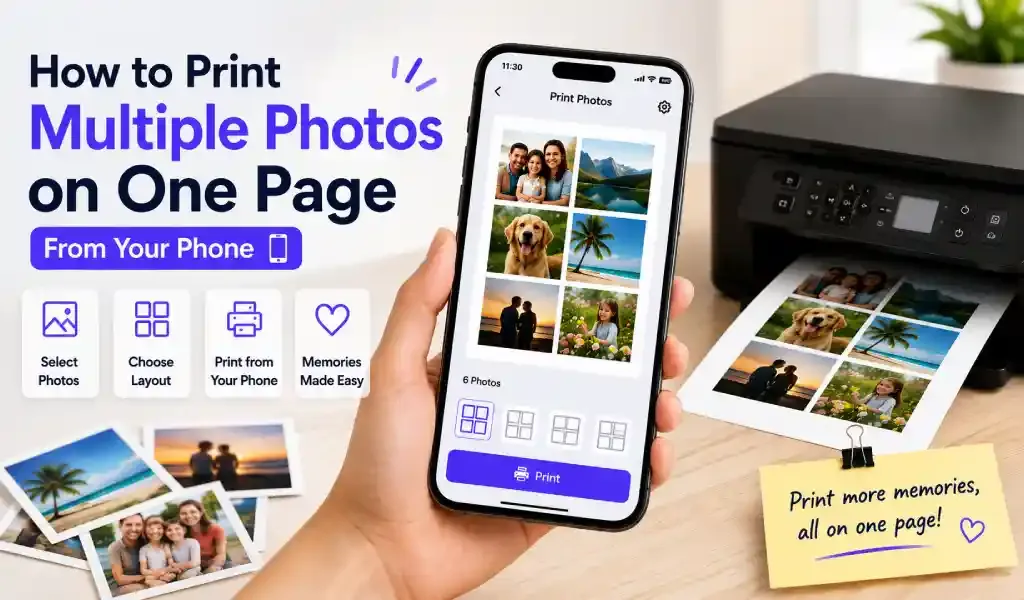
Yes, you can fit several photos on a single printed page, but your phone's default print option probably won't do it. Most built-in photo-sharing print tools send one photo per sheet. Getting an actual grid, collage, or contact sheet onto one page takes a printing app with a proper multi-photo layout tool.
Why Bother Printing Multiple Photos on One Page
Paper and ink cost money, and full-size single prints add up fast once you're past a couple of shots. A page split into a grid gets you more photos for the same sheet, which matters for things like:
- Building a photo collage or a gallery wall without ordering prints online
- Making a contact sheet to review a batch of shots before deciding which to enlarge
- Printing repeated small photos on one sheet — wallet-size prints, ID photos, or passport-style photos, where you need several identical copies rather than several different images
- Putting together a page for a scrapbook, a card, or a school project
Why Your Phone Doesn't Do This on Its Own
Tap "print" from your phone's photo app and you'll usually get exactly one photo, centered, one per page. iPhone's AirPrint dialog and Android's default share-to-print options weren't built with photo layout in mind. They hand the image to the printer as-is and let the printer decide the rest, which almost always means one image, one page, no grid.
To get multiple images arranged and sized correctly on a single sheet, the layout work has to happen before the file reaches the printer. That's what a dedicated multi-photo or "advanced format" tool does: it builds the grid first, then sends the finished page to the printer as one combined image.
Step-by-Step: Print Multiple Photos on One Page
- Open the multi-photo or advanced format tool in your printing app, instead of the regular single-photo print option.
- Select the photos you want on the page. This can be several different photos, or the same photo repeated, depending on the layout.
- Choose a layout. Common options are a 2-up split page, a 4-up grid, a contact-sheet style thumbnail grid, or a repeated grid for wallet or passport-size prints.
- Adjust each photo if the tool allows cropping or repositioning within its cell, so faces or subjects don't get cut off awkwardly.
- Pick your paper size — standard letter or A4 for a mixed layout, or photo paper sized for the specific print you're making.
- Preview, then print. Check that nothing is cropped wrong before committing the page.
In Smart Printer: Print Scan Fax, this lives under Advanced Formats, alongside the app's passport photo and label tools, since they all use the same underlying idea: several images placed precisely on one sheet instead of one image per page.
Matching Layout to Photo Size
The right grid depends on what the photos are for:
| Use Case | Typical Layout | Roughly Fits on Letter/A4 |
|---|---|---|
| Wallet-size prints | Repeated grid | ~8 photos |
| Passport or ID photos | Repeated grid, tight spacing | ~4–6 photos |
| Family collage | Mixed grid, 4-up | 4 photos |
| Contact sheet or proofing | Small thumbnail grid | 12–20 photos |
A single sheet of 4×6 photo paper works fine for a simple 2-up split. Anything with more than four images usually looks and prints better on a full letter or A4 page, simply because there's more room for each photo to stay a usable size.
Borderless or Bordered?
Most layout tools let you choose between a borderless grid, where photos sit edge to edge, and a bordered one, with a thin margin around each cell. Borderless looks cleaner for a collage or a gallery-style print, but it also means your printer needs to support borderless printing at that paper size, or the edges of each photo can get clipped. A bordered layout is more forgiving: every printer handles it, and the margin gives you a natural line to cut along if you're separating the prints afterward, which matters for wallet photos and passport photos in particular.
Tips for a Cleaner Result
- Use glossy or matte photo paper for anything meant to look like a real photo print; plain paper is fine for contact sheets and proofs.
- Keep photos in the same orientation within a layout where possible. Mixing portrait and landscape shots in a tight grid tends to look messy.
- Check the aspect ratio before printing. A photo that doesn't match its grid cell's shape will get cropped or stretched, not just shrunk to fit.
- If a photo looks slightly off-center in the preview, nudge it before printing rather than after. Reprinting wastes the paper and ink you were trying to save in the first place.
Quick Answers
Can I print 4 photos on one page from my iPhone? Yes, using a printing app with a multi-photo or grid layout tool. The iPhone's default AirPrint dialog doesn't offer this on its own.
What layout works best for wallet-size photos? A repeated grid sized for roughly 2×3 inch prints fits about eight photos on a standard letter or A4 page.
Can I use a multi-photo layout for passport photos? Yes. Passport and ID photos use the same grid-printing approach, just with tighter spacing and a fixed photo size matching your country's requirements.
Do I need photo paper for this? Not always. Photo paper gives the best result for real photo prints, but plain paper works fine for contact sheets, proofs, or drafts you're not planning to keep.
Arrange and print multiple photos on one page with Smart Printer: Print Scan Fax — free on Google Play and the App Store.