 Smart Printer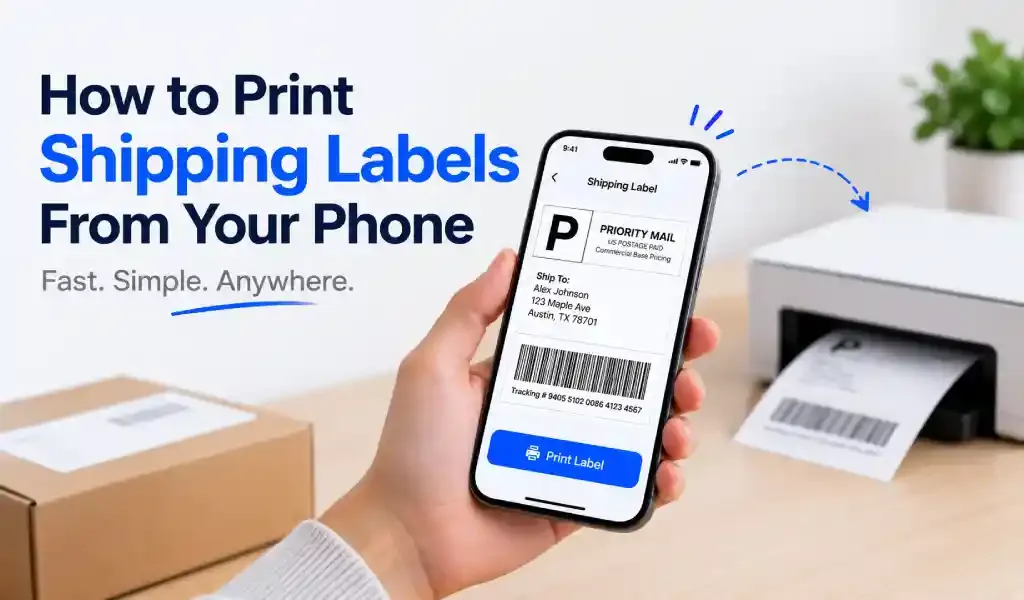
Once a carrier or marketplace generates your shipping label as a PDF, you can print it straight from your phone to any WiFi printer, no computer required. Save the label, open it in a printing app, pick your printer, and print. The whole thing usually takes under a minute.
That said, there's one part of this that trips people up, so it's worth clearing up before the steps.
Where the Label Actually Comes From
A printing app doesn't create a valid shipping label. It can't generate a tracking number or the barcode a carrier scans at drop-off. That part comes from wherever you bought the postage, USPS Click-N-Ship, UPS or FedEx's own tools, PayPal, or the shipping section inside eBay, Etsy, or Shopify. Once you pay for postage there, the label lands on your phone as a PDF, usually by email or direct download.
What a printing app actually solves is the next step: getting that PDF onto paper without hunting down a computer. If you've ever bought a label on your phone and then had no way to print it except emailing yourself and finding a laptop, that's the exact gap this fills.
Step-by-Step: Print a Shipping Label From Your Phone
- Get the label PDF — download it from the carrier or marketplace, or open it straight from the confirmation email.
- Open the file in a printing app like Smart Printer: Print Scan Fax.
- Connect to your printer. As long as your phone and printer share the same WiFi network, the app finds it automatically.
- Check the print size before printing. Most labels are built for one specific page size (more on that below), so confirm it rather than letting the app default to "fit to page," which can shrink the barcode.
- Print, trim if needed, and attach it to the package.
Why Not Just Use the Print Button in the Shipping App?
Most marketplace and carrier apps have their own print option, and it's worth trying first. The catch is that a lot of them only support AirPrint on iPhone, with no reliable print path on Android beyond hoping your printer happens to work with the phone's generic share sheet. If your printer isn't AirPrint-certified, or you're on Android, that built-in button often just doesn't find anything to print to.
A universal printing app sits underneath that layer. It doesn't care which app the PDF came from, only that it's a PDF or image sitting on your phone, so it becomes the fallback that works regardless of which marketplace, carrier, or phone you're using.
Do You Need a Special Label Printer?
No, not unless you're shipping in real volume. A standard inkjet or laser printer handles shipping labels fine, whether you print onto adhesive label sheets or plain paper taped into a label pouch — most carriers accept both.
Thermal label printers, the small dedicated machines many high-volume Etsy and eBay sellers use, exist for a different reason: they skip ink entirely and print faster, which starts to matter once you're shipping dozens of packages a day. They also require their own label rolls, which cost more per label than plain paper or a standard sheet. For anyone shipping occasionally, a WiFi printer already sitting on your home network is the simpler, cheaper option, and one less device to keep fed with supplies.
What Size Are Shipping Labels?
4x6 inches is the standard across USPS, UPS, FedEx, and DHL. That size isn't arbitrary. It's built to hold the barcode and address block at a size carrier scanners can read reliably. Some carriers will still accept a label printed at a different size, but a shrunk or oddly scaled barcode is one of the more common reasons a label fails to scan at drop-off.
Printing Other Labels From Your Phone
Shipping labels aren't the only kind you'll ever need. Return address labels, moving-box labels, pantry and storage labels, or labels for a small product line all come up too, just without a barcode attached. Apps that include a label template library let you design and print those the same way, straight from your phone, with no shipping account involved at all.
This matters more than it might seem for anyone running a home-based shop. The US is on pace to ship more than 24 billion packages in 2026, and the average American household already sends or receives upward of 14 a month. A meaningful share of that volume is small sellers on Etsy, eBay, and Shopify packing and labeling orders from a kitchen table, not a warehouse.
FAQ
Can I print a shipping label without a computer? Yes. Once the label exists as a PDF, a printing app on your phone can send it to any WiFi printer directly.
Do I need a thermal printer for shipping labels? No. A regular inkjet or laser printer works fine for occasional shipping. Thermal printers mainly save time and ink for high-volume sellers.
What size should I print a shipping label at? 4x6 inches, the standard size for USPS, UPS, FedEx, and DHL. Avoid "fit to page" scaling, which can shrink the barcode below a readable size.
Can I print a shipping label on plain paper? Most carriers accept plain paper as long as it's securely attached in a label pouch or taped down with the barcode fully visible. Adhesive label sheets look neater but aren't required.
Print any shipping label, or design your own from 100+ templates, straight from your phone with Smart Printer: Print Scan Fax — free on Google Play and the App Store.
Related: How to print from your phone without a computer · Why won't my phone find my wireless printer?