 Smart Printer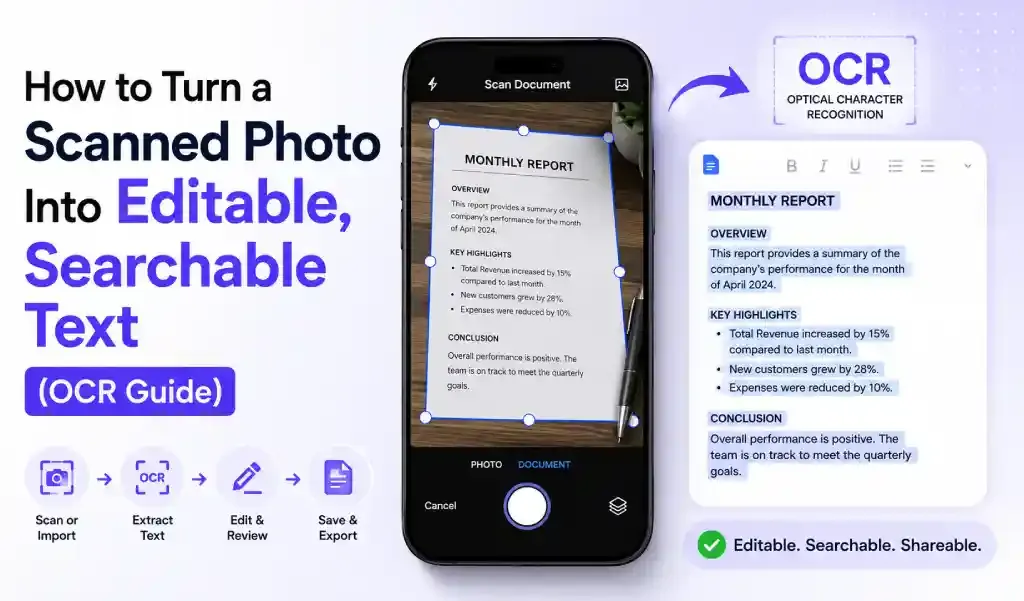
A scanned photo can look like ordinary text to you, but to a phone or computer, it is usually just an image. OCR (Optical Character Recognition) converts the text inside that image into machine-readable text, allowing you to search, copy, edit, annotate, and reuse it.
Whether you have an old family photo, a scanned receipt, a printed form, a handwritten note, or a document saved as an image, OCR can make the information much easier to work with.
What Is OCR?
OCR is technology that recognizes characters and words inside images and converts them into digital text. Modern OCR systems can identify individual words as well as the structure of dense documents.
For example, imagine you scan a printed contract and save it as a JPG. Without OCR, you can look at the words, but you cannot easily select or search them. After OCR, the text becomes machine-readable and can be copied, searched, edited, or exported.
How to Turn a Scanned Photo Into Editable Text
The easiest method is to use a document-scanning or OCR app that can recognize text from your phone's camera or saved images.
1. Scan or import the photo
Start with the clearest version of your scanned photo. You can either photograph the original document with your phone camera or import an existing image from your gallery.
For the best results, keep the document flat and make sure the entire page is visible.
2. Let OCR recognize the text
Open the image in an OCR-enabled scanning tool and run text recognition. The software analyzes the image and identifies characters, words, lines, and paragraphs.
For dense documents, specialized document OCR can also preserve information about the document's structure rather than simply returning a block of text.
3. Review the extracted text
OCR is fast, but it is not perfect. Carefully check names, numbers, dates, email addresses, and unusual words.
Low-quality scans, unusual fonts, shadows, blurred photographs, and handwriting can increase recognition errors. If something looks wrong, retake the scan with better lighting and a sharper image.
4. Edit the text
Once the text has been recognized, you can correct mistakes and make changes without manually typing the entire document again.
This is particularly useful for:
- Old printed documents
- Receipts and invoices
- Business forms
- Notes and letters
- Books and research material
- Scanned contracts
- Printed forms
5. Save or export the result
After reviewing the OCR output, save the information in a format that fits your workflow. Depending on the app, you may be able to copy the text, save the document, or export it as a searchable PDF.
How Do You Make a Scanned PDF Searchable?
To make a scanned PDF searchable, run OCR on the pages and save the recognized text as part of the PDF. This creates a searchable text layer while retaining the original scanned page as the visual document.
That means you can use your PDF reader's search function to find words without manually reading every page.
Google's OCR documentation specifically distinguishes ordinary text detection from document text detection, which is designed for dense documents such as reports and books.
How Accurate Is OCR?
OCR accuracy depends heavily on the quality of the original image. A sharp, well-lit scan with straight text generally produces better results than a blurry or angled photograph.
For important documents, always proofread the OCR output before relying on it. Pay particular attention to numbers, punctuation, names, addresses, and special characters.
Can You OCR a Photo on Your Phone?
Yes. Modern smartphones can capture documents and use OCR to extract their text. Some OCR technologies can even process handwriting, although handwritten text is generally more challenging to recognize accurately than clean printed text.
A mobile document scanner such as Smart Printer: Print Scan Fax can be useful when your workflow starts with a phone. You can scan a document with the camera, clean up the scan, and continue working with the resulting digital file instead of manually retyping everything.
OCR vs. Scanning: What's the Difference?
Scanning creates a digital image; OCR turns the words inside that image into searchable, machine-readable text.
A scanner can produce a JPG or PDF that looks exactly like the original page. OCR adds another layer by recognizing what the page actually says.
That distinction matters when you need to search a document, copy a paragraph, edit information, or reuse text elsewhere.
Frequently Asked Questions
Can OCR convert a JPG into editable text?
Yes. OCR can recognize printed text inside JPG images and convert it into machine-readable text that can be copied or edited.
Can OCR make a scanned document searchable?
Yes. OCR can create a searchable text layer for scanned documents, allowing you to find specific words or phrases.
Does OCR work with handwriting?
Some OCR systems support handwriting recognition, but accuracy varies significantly depending on handwriting style, image quality, and language.
What is the best way to improve OCR accuracy?
Use a sharp, well-lit image with the document positioned straight and fully visible. Avoid glare, shadows, blur, and low-resolution scans.
Turn Old Scans Into Usable Documents
OCR removes one of the biggest frustrations of scanned documents: having information trapped inside an image. With the right scanning tool, you can capture a page with your phone, recognize its text, correct any errors, and turn the scan into something you can actually search, edit, share, and reuse.
For occasional documents or everyday paperwork, doing the entire process from your phone can be considerably faster than scanning first and dealing with the file later on a computer.