 Smart Printer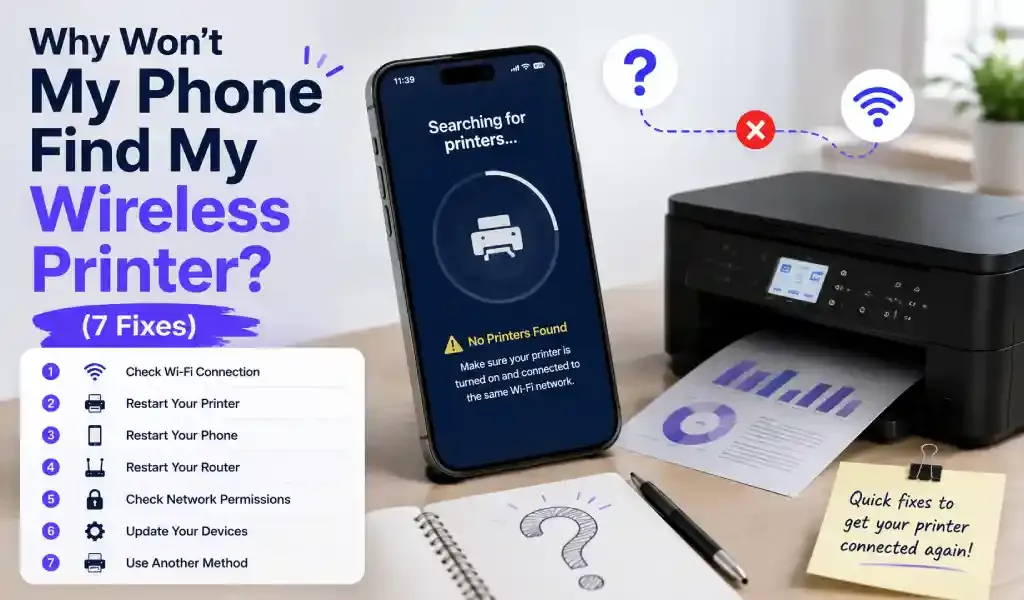
Most of the time, your phone can't find your wireless printer because the two devices aren't actually on the same network, even though it looks like they should be. Guest networks, dual-band routers, and printers stuck in the wrong connection mode are the usual suspects. Below are the seven things actually worth checking, roughly in the order they tend to fix the problem.
1. Check You're Really on the Same Network
This is the one that trips up almost everyone. "Same WiFi" doesn't always mean the same network. If your router broadcasts a separate guest network, or splits your main WiFi into two bands — something like "Home" and "Home-5G" — your phone might be on one while your printer is stuck on the other. Most printers, especially older or budget models, only support the 2.4GHz band, so if your phone auto-connected to the faster 5GHz signal, the two devices are on the same router but different networks as far as discovery goes.
Open your phone's WiFi settings and compare the exact network name to whatever your printer's display or settings page shows. They need to match exactly, not just look similar.
2. Grant the App Local Network Permission
On iPhone, this one catches people constantly. Since iOS 14, apps have had to explicitly ask permission to see other devices on your WiFi, separate from your regular WiFi settings. If you tapped "Don't Allow" on that prompt at some point, or don't remember seeing it at all, the app simply has no way to detect anything nearby — printer included.
Go to Settings, then Privacy & Security, then Local Network, and make sure the printing app is switched on. Android has something similar on newer versions, usually listed as "Nearby devices" under the app's individual permissions.
3. Turn Off Client Isolation on Your Router
This one's more technical, but it explains a lot of the "everything looks right and it still won't connect" cases. Many routers, especially mesh systems and ISP-provided ones, have a setting called client isolation or guest network isolation. It's a security feature that stops devices on the same WiFi from seeing each other, which is exactly what breaks printer discovery.
It's usually buried in the wireless or advanced settings of your router's app or admin page, often specifically tied to the guest network. If you're on a guest network at all, try switching both devices to the main one before you go looking for this setting.
4. Restart the Printer and the Router
Not exciting, but it works more often than it has any right to. Printers hold onto network connections and IP addresses in ways that occasionally just get stuck. A printer left idle for a few days, or one that never fully reconnected after a router reboot, can end up showing "connected" on its own screen while being invisible to everything else on the network.
Turn the printer off, unplug the router for about 30 seconds, and let the router fully come back online before switching the printer back on. Give it a minute or two before trying to find it again.
5. Turn Off Your VPN
If you've got a VPN running on your phone, that's very likely the culprit. A VPN routes your traffic through a remote server, so your phone stops behaving like it's actually on your local network for the purposes of device discovery, even though it's still connected to that WiFi. This breaks local printer detection almost every time.
Disconnect the VPN, at least while you're printing, and try again. Some VPN apps let you exclude local network traffic instead of turning the whole thing off, though the setting is easy to miss.
6. Make Sure the Printer Isn't in WiFi Direct Mode
Many printers support two ways of connecting: joining your regular home network, or WiFi Direct, where the printer creates its own private network that your phone connects to directly. The two options often look similar in the printer's menu, and it's easy to pick the wrong one during setup without realizing it.
A printer in WiFi Direct mode won't show up in a normal network scan, because it isn't actually on your network — it's running its own. Check the printer's control panel for its connection mode and switch it to standard WiFi if you want it to appear alongside everything else on the network.
7. Move the Printer Closer to the Router
Sometimes it really is just signal strength. Printers tend to have weaker WiFi antennas than phones or laptops, so a spot with perfectly good signal for your phone can still be a weak zone for the printer. If the printer's display shows a low or flickering WiFi icon, or it keeps dropping off the network on its own, that's your answer.
Try moving it closer to the router, even temporarily, or add a WiFi extender if it needs to stay where it is. Walls with metal ductwork or plumbing behind them can knock out more signal than you'd expect over a short distance.
Quick Questions
Do I need to restart my phone too? Usually not. Restarting the printer and router covers most cases. If you've worked through all seven fixes and it's still not showing up, a phone restart is a reasonable last resort, but it's rarely the actual cause.
Why did it work yesterday and not today? That almost always points to something changing on the network side — a router reboot that handed out new IP addresses, a printer firmware update, or the phone switching bands. Fixes #1 and #4 solve this most often.
Is the fix different on Android versus iPhone? The permission step is the main difference — iPhone's Local Network permission is stricter and easier to deny by accident. Everything else, from network matching to router isolation to WiFi Direct, affects both platforms the same way.
If you've gone through all seven and the printer still isn't showing up, it's occasionally a firmware issue on the printer's side rather than anything on your phone, so a quick check for a printer firmware update is worth the five minutes. Smart Printer: Print Scan Fax scans your network automatically and will tell you directly in the app if it's a permission or connection issue, which saves some of the guesswork above.